Wednesday, December 3, 2014

Dr. Harris Visits The White House for #FutureReady Summit

Dr. Brian Harris attended a Superintendent Summit at The White House in Washington, DC, on November 19, 2014, that was attended by school leaders who were invited from districts engaged in exemplary technology-based learning initiatives. Dr. Harris was among around 100 superintendents nationwide who attended the summit.

In a speech during the event, President Obama said:
"In a country where we expect free Wi-Fi with our coffee, the least we can do is expect that our schools are properly wired...We’ve got to bring the world to every child’s fingertips."
Watch the full speech:


Superintendents in attendance were asked to sign a #FutureReady Pledge to commit to work with “students, educators, families, and members of our community to become Future Ready by engaging in a wide range of activities,” including the following:
  • Fostering and Leading a Culture of Digital Learning Within Our Schools.
  • Helping Schools and Families Transition to High-speed Connectivity.
  • Empowering Educators through Professional Learning Opportunities.
  • Accelerating Progress Toward Universal Access for All Students to Quality Devices.
  • Providing Access to Quality Digital Content.
  • Offering Digital Tools to Help Students And Families #ReachHigher.
  • Mentoring Other Districts and Helping Them Transition to Digital Learning.
Adapted from futurereadyschools.org/domain/13

Read more about the #FutureReady pledge at tech.ed.gov/futurereadypledge.

Dr. Brian Harris at The White House.

Check out the ConnectEd resources for teachers at tech.ed.gov/teachers.

Taking a Hammer to SAMR

An earlier article defined Dr. Ruben Puentedura's SAMR model as a tool teachers can use to measure the effectiveness of technology integration in their lessons. In a "Taking a Hammer to SAMR" series, beginning with this post, we will unpack the specifics of the SAMR model in terms of best practices in instruction and assessment.

The SAMR Model:
Image Rights Free

SAMR stands for Substitution, Augmentation, Modification, and Redefinition. The SAMR Model resembles a ladder with a clearly delineated top and bottom half. The bottom half includes Substitution and Augmentation, labeled as instructional Enhancement. The top half includes Modification and Redefinition, labeled as instructional Transformation.

The lower Enhancement rungs of the ladder allow students and teachers to add small, useful benefits to the curriculum and instruction of daily lessons. The higher Transformation rungs of the ladder afford teachers the opportunity to empower students take ownership of the learning of the lessons.

SAMR is a great model meant to define how technology is integrated. However, using the SAMR model requires teachers to truly understand the role of technology in education.

It's not about the technology. It's not about Google Drive or iPads. It's about good, quality instruction and assessment. To best meet the learning needs of each student during a given lesson, a teacher needs to know what each student knows about the content, how each student best learns new material (in order to plan and execute the lesson plan), and how each student can demonstrate knowledge gained as a result of participating in the lesson.

A teacher may approach me and share, "I need to talk to you about Glogster! I want my students to make a digital poster, but I am having trouble with Glogster."

Using technology in a lesson should be no different than the integration of any activity, manipulative, or other tool into a lesson. Technology integration does not need its own curriculum because it's not a curriculum. Technology is one tool that teachers and students can use to present new ideas, learn those ideas, and demonstrate learning.

Rather than focus on the tech tool, such as Glogster digital posters, the first question to consider is, "What is the learning target the students will meet today?" The answer will reference a standard, not a tool. Then technology tools can be considered to help bring each individual student to demonstrate their understanding of the learning target through the assessment.  Technology is one of the tools available for teachers to use. Technology is not the learning target.

In the example above, the teacher aimed for first grade students to demonstrate knowledge of themselves; that was the learning target. The tool she wished to use, Glogster, allows students to create a poster digitally. In this case, the use of technology was a tool, not the learning target.

We have begun this discussion of SAMR by stating the need to clearly define learning targets as the first step of planning technology integration. In the next issue of bsd220tech, I will clearly define the first rung of the SAMR ladder: Substitution.

Technology Integration en EspaƱol (VIDEO)

Recently I had the pleasure of visiting the Barrington High School Spanish classroom of Ms. Sheila Soss. In a single class period, I observed several great examples of technology integration and students who were constantly engaged. Since the classroom had a strict “no English” rule, I did my best to follow along (I am a native English speaker and had 4 years of high school French in the late 1980s).

The first activity was “interpersonal writing,” where students created shared Google Docs and shared them with a few of their peers and the teacher. Students wrote back and forth to each other in Spanish in the document while Ms. Soss viewed the conversations, added to the conversations, and made a few comments and corrections.

Students then assembled in groups of two and used one of the audio recording applications (Audacity or QuickTime Player) to record a conversation in Spanish. When the recording was finished, students listed to themsleves and then uploaded the recording to the class Learning Management System for Ms. Soss to hear later.

Perhaps the highlight of the class for the students was when everyone logged on to Kahoot, a “game-based blended learning and classroom response system” (getkahoot.com). In advance, Ms. Soss had selected a YouTube video of an interview in Spanish. At key points, multiple-choice questions were introduced during the video and students could answer on their laptops in a gameshow-like presentation. The feedback was instant as Kahoot displayed the running and final results, and named a “winner” at the end of the game. Kahoot is free and works on any Internet-connected device.

The final activity was a continuation of the previous night’s homework. Students had created a short presentation in Movenote, an online video presentation tool (movenote.com), and had posted the presentations on the class Learning Management System. Movenote allows a video recording of a presenter speaking in a small window and offers a larger window to add images or other visuals that advance in synch with the video. Students selected presentations of their peers and provided written comments and reactions of the presentations in Spanish.

As students attest at the end of the following video, they very much enjoyed these activities. Even with my limited understanding of Spanish, I was able to follow Ms. Soss’s directions for using the various applications and web tools that she embedded along with her language instruction. Please take a look at this 2-minute video of BHS Spanish:


Use of Images Online

Copyright is the U.S. law that protects original written, artistic, musical, and other types of works. One common copyright issue is the posting of images on webpages found online. As educators we strive to engage our audience with words and images and we have learned how easy it is to find hundreds, if not thousands, of images online using tools such as Google image search and “stock” photography sites. Unfortunately, not all images that we find online are able to be legally re-posted on webpages.

Many images are perfectly fine to use on our webpages:
  • photos we have taken ourselves
  • graphics we have created ourselves
  • public domain images
  • images with certain Creative Commons licenses
Unless you are positive that you may use a particular image you have found online, it is best not to use it and avoid the possibility of copyright infringement. Copyright infringement is illegal and may result in penalties in the form of "cease and desist letters" and/or fines that are assessed by the copyright owner.

One resource we have in Barrington 220 about our copyright responsibilities is the Copyright and Fair Use General Principles section of the school opening presentation that covered a variety of “mandated” information. You can review the copyright section here.

Often, images found on the Internet include a "watermark," indicating that
they are copyright by someone else and, therefore, not free to use.
(This is one of my own photos with a watermark I added for illustrative purposes.)

Self Service Password Resets, a Sneak Peek!

It was quite the short week last week, but we did get some things done in that 2-day stretch. Here is a sneak peek at some of the work we did...


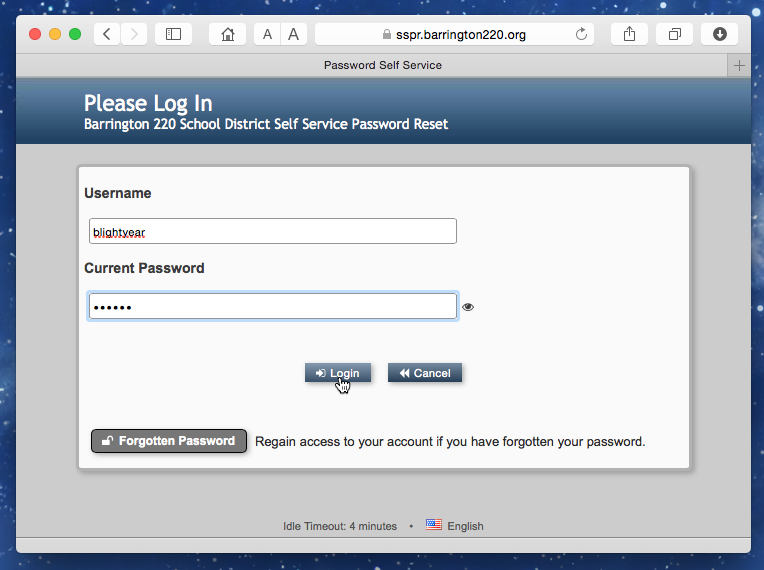
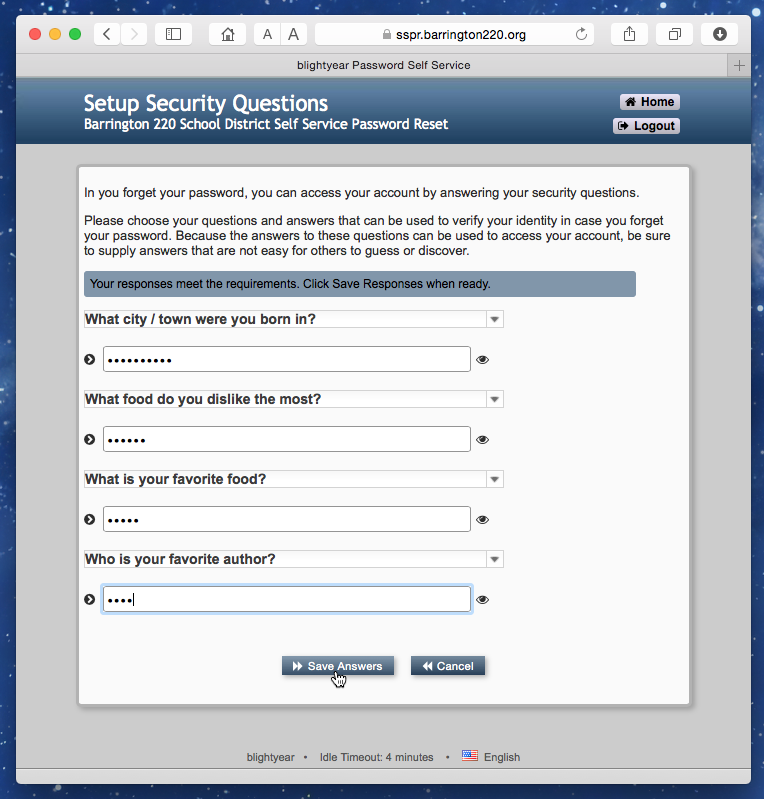
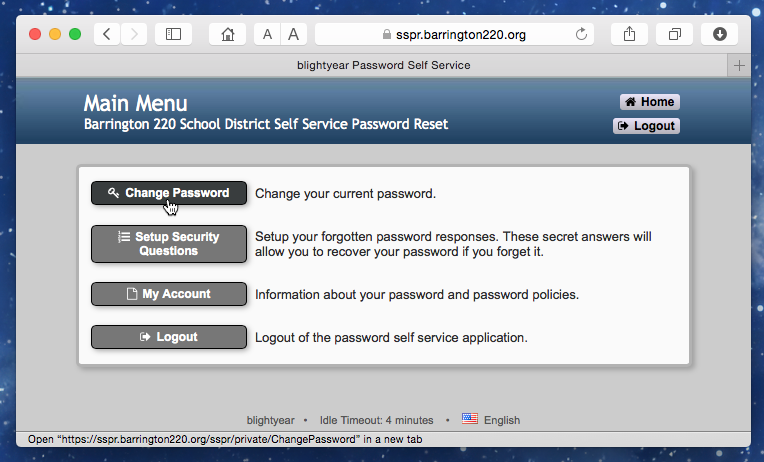
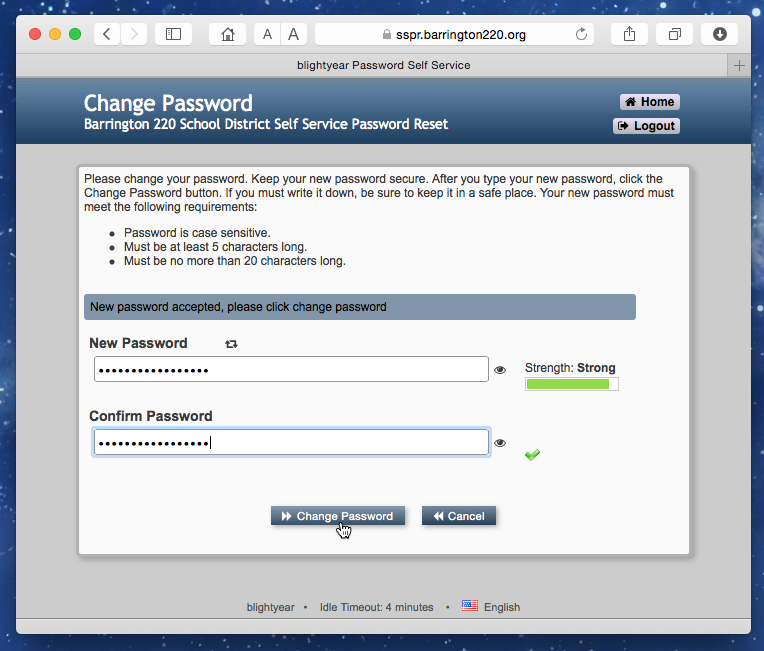
Officially being released to staff and students (of higher grade levels) this month, we are offering a new way to change Barrington 220 network account passwords, as well as providing a way for you to recover forgotten passwords without the help of IT staff. This service will be provided through the new web-based Barrington 220 Self Service Password Reset system.  

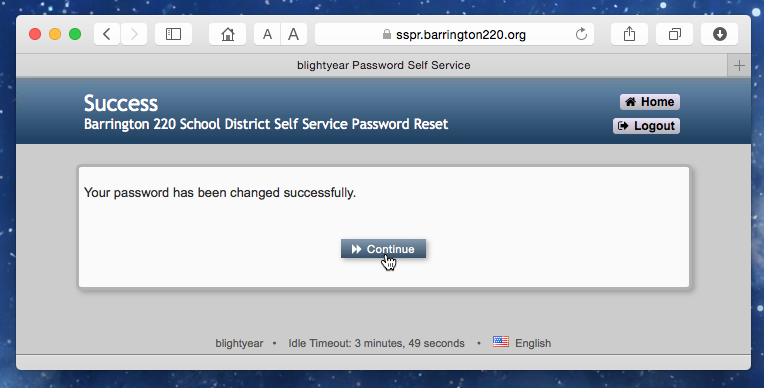
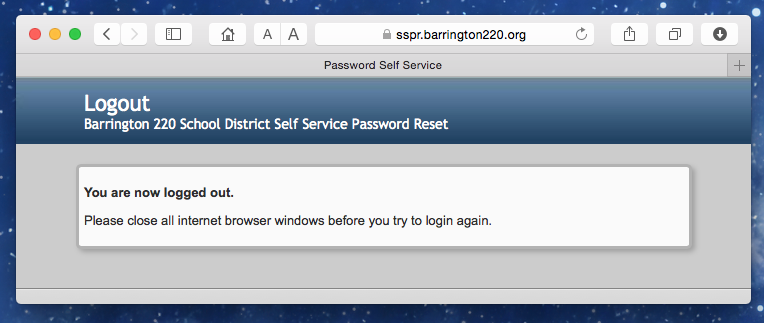
You know we like our acronyms and abbreviations in technology; this one is "SSPR." Typing in SSPR along with our domain name "barrington220.org" into a web browser (sspr.barrington220.org) will bring you to a secure district web page. Once your Barrington 220 network username is entered along with your current password, you will be asked to pick a series of questions and provide answers to these questions. This allows us to confirm your identity should you ever lose your password and require a tool to reset your password. Here are a few screen shots, courtesy of colleague and "beta tester" Dr. Matt Fuller:


The new SSPR system (powered by NetIQ) is stable, easy to use, and best of all it has been working well. Password resets can not only be frustrating to users, but can keep IT departments quite busy. I myself have been involved with two password resets so far today, coming on the heels of five days off for most of our staff and students, which is plenty of time away for some to forget a password. If you happen to try the system, please feel free to send me some feedback. As I mentioned earlier, this is just a "sneak peek," but fully functional version, of the new system.

Popular Recent Posts