Wednesday, February 10, 2021

Guest Post: Virtual Book Clubs Foster Empathy

This is a guest post from Barrington High School Teacher Librarians Janet Anderson and Jennifer Walsh. 


On February 23, 2021, Ms. Anderson, Ms. Walsh, BHS teacher Kathleen Duffy, and Barrington 220 Director of Grants, Professional Development, and MTSS, Margo Schmitt, will present at the ESSA & Multilingual Illinois Virtual Conference via video. Their presentation entitled Using Book Clubs to Promote Social & Emotional Learning highlights the power of literature to promote empathy and inclusion. The presentation demonstrates how technology can be leveraged to conduct virtual book clubs during distance learning.

As librarians, we know and understand the power that books can have on people. It has been said that libraries, and the books within them, are the great equalizers of humans. No matter who you are, the library offers you the opportunity to learn through books. To understand through books. To build empathy through reading.

Researchers have tested, then retested, verified, then re-verified that reading books, especially fiction, "provide[s] us with the opportunity to take other people's perspectives in a safe, distanced way. In that way, fiction serves as a playground for empathetic skills" (Chopik, 2016). The evaluation resposes from the teachers who took this professional development suggest that they agree. 

To learn more about the classes, watch the video, ask us, or take some of the courses this summer!

Using Book Clubs to Promote Social & Emotional Learning


Present with Keynote in Zoom Using Play in Window

Keynote is a powerful presenting and collaboration app that is available on all Mac and iPad devices in Barrington 220. I have used Keynote exclusively since its release 18 years ago as my primary presentation app, but I also use it for video production, organizing ideas, storing and organizing information (in iCloud), collaborating (sharing with another Apple ID), and other creative pursuits.

I prefer Keynote over other presentation apps due to its ease of use, its near-perfect transitions and other effects (especially Magic Move!), its ability to handle video better than other presentation apps, and its professional handling of typography. Keynote’s ability to export to pro-level video formats also makes it an ideal video production tool for animations, titles, and other sequences.

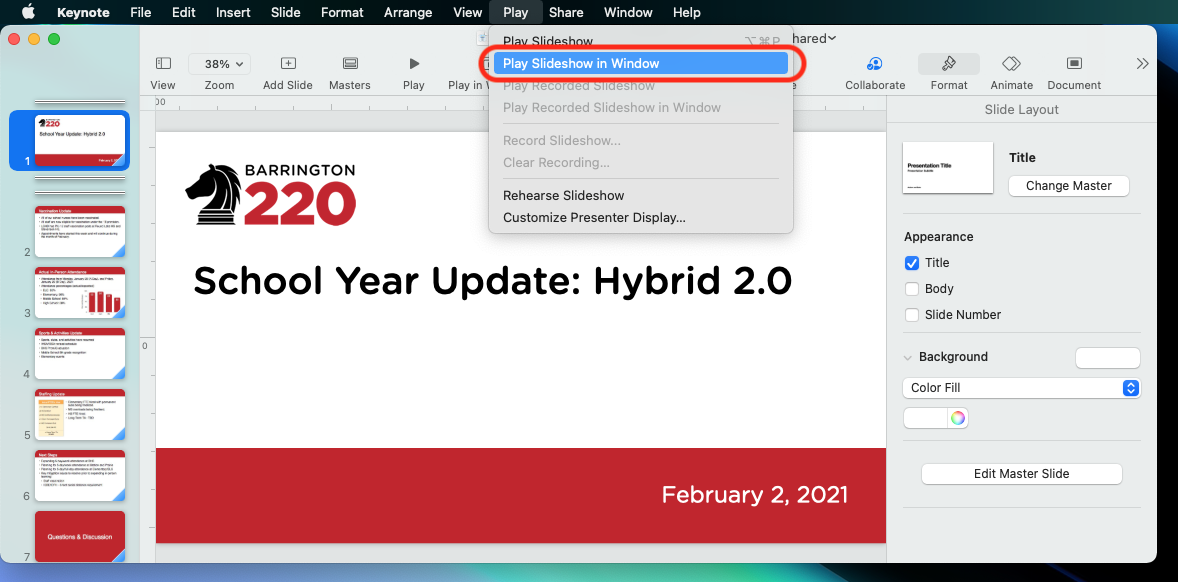
More than once, I have watched presenters struggle while using Keynote in Zoom or other video conference apps. When going full-screen while on a Zoom, various issues ensue, such as slides not advancing properly. Luckily, Apple released an update for videoconferencing back in July. The “trick” is to NOT press the Play button, but to pull down the Play menu and select Play Slideshow in Window.

If you know you will be presenting, you can Play Slideshow in Window before you begin your presentation and have it ready to go. When it’s time to present in your video conference in Zoom, click the Share Screen button, and select the Keynote presentation window. Since Keynote is presenting in a window (and not in full-screen), you will also be able to use and share other open apps while you present.

Since I use this feature frequently now, I added it to my toolbar. Use the View menu to select Customize Toolbar... and drag the Play in Window control to your toolbar.

Apple has a Support document that includes a few more features here.

Finally, here are several screen captures to illustrate these tips.


Control the iPad without Using your Hands


Key's Quick Tips are provided by Kelly Key, Assistive Technology Coordinator for Barrington 220. Each month, Kelly Key features a tool to support our students.

This month's featured tool is using Voice Control to access the iPad without using your hands.

There are many features built into the iPad that anyone can benefit from. Although these features are hidden under the Accessibility tab, they are not just useful for people with special needs. These are tools that anyone can use and benefit from. Voice control is just one of these features that you and your students should know about. Voice control is a feature that allows you to control the iPad without using your voice!

See the video example here...


You can use this when you...
  • Are multitasking (ie: typing on your computer and want to do something on the iPad at the same time)
  • Have an injury (ie: broken hand or arm) and have difficulty accessing the iPad
  • Feel too tired to use your hands to navigate the iPad
  • Prefer to speak your writing vs typing it

Directions:


On iPad, select Settings > Accessibility > Voice Control > Turn on Voice Control at the top.

For more features and directions visit: Apple's Site Here

5 Red Flags and 4 Effective Uses for Quiz Show Platforms

The roar from the classroom next door momentarily distracts your attention. Your colleague's class seems excited about something. Students are cheering, groaning, and obviously engaged in something wonderful. You poke your head out your classroom door to peer into your neighbor's room, and then you see it. Students on the edge of their seats in another riveting game of Gimkit. Whether it’s Gimkit, Quizizz, Kahoot!, Quizlet Live, or Blooket, teachers and students are rattling the sterile and distanced hybrid classroom with some good old-fashioned quiz show review games. 


Formative assessment and immediate feedback are vital parts of the learning process. In looking for ways to assess student learning in an engaging way, teachers have turned to a variety of "Quiz Show" platforms. These platforms offer fast-paced, fun, gamified environments that, on the surface, appear to be exactly what students need. 

While each platform has unique features and gimmicks, they all work in similar ways. Teachers create quizzes by uploading or writing questions. Students participate in real time or asynchronously. Students are rewarded for correct answers, and teachers get feedback on what students got right and wrong. These platforms typically have a free version and a paid version. The paid version usually gives access to premade quizzes and more features. 

These platforms have potential to serve as a fun and interactive way to formatively assess and practice recall-level information, but there is also the possibility of misuse and overuse. If you’re thinking of exploring one or more of these platforms, you should consider the following when planning.

 Five Red Flags for Quiz Show Platforms 

  1. They encourage low-level recall learning. These platforms are fun and engaging and create a game-like atmosphere for formative assessment of low-level recall concepts. However, they tend to function well ONLY for low-level, recall of information. They don't seem to work well for practice and reinforcement of any higher level thinking and skills. For assessment and practice of concepts that includes higher level thinking, we have purchased and fully support IXL for both math and literacy.
  2. They rely on competitive motivation. Platforms like Gimkit create a competitive fast-paced atmosphere where quick recall of information is rewarded. These platforms tend to engage fast processing students and frustrate slower processing students. Students who engage with these platforms for competitive reasons tend to disengage the moment they see they cannot "win." Students who miss a question will quickly lose interest if they fall behind other players. The game show set-up that rewards faster response times is based on the assumption that slower reaction time means lower levels of understanding. While lack of understanding is ONE reason a student might answer more slowly, there are certainly many examples of students who demonstrate a high level of understanding, but are more deliberate in their thinking. 
  3. They rely on extrinsic motivation. Gimkit gives "cash" rewards for correct answers that can be used to buy in-game upgrades. Other platforms reward with points and scores. There is little doubt that internalizing core concepts and developing automaticity of foundational knowledge is a vital precursor to higher level thinking. Using points and other rewards to motivate participation negatively impacts attempts to get students to buy in to the value of learning for a greater purpose. There is certainly a place in instructional design for formative assessment of foundational knowledge, but competitive, extrinsically rewarded recall-based assessment needs to be used sparingly and thoughtfully if you are trying to foster intrinsic motivation for learning. 
  4. They offer short-term engagement. Much like the early computer games from the 1980s, and the "clickers" of the early 2000s, these platforms are like fireworks. They tend to be extremely engaging and exciting at first and for a very short period of time, but student interest fizzles out once the novelty wears off. 
  5. They may create privacy and security concerns. Since these platforms have not been approved by the district, that means they’ve not been vetted for privacy and security concerns. Any platform that requires students to enter any personal information—such as an email, name, or age—should not be used. Luckily, most platforms work with a teacher account set up and anonymous student participation. With new platforms emerging all the time, teachers need to be extra diligent not to share student information.

Four Effective Uses for Quiz Show Platforms

  1. Design for cooperation, not competition. A few platforms, like Quizlet Live, build in cooperative learning games rather than relying solely on competition. Getting students to work together builds a sense of shared responsibility for everyone’s success. Having students work together eliminates the social pressure of competition. Students can be put into pairs or even break down questions as a whole class. 
  2. Create games for self-paced practice. Although these platforms were designed for real-time formative assessment, they can also be used for asynchronous student practice. Create a collection of quizzes and games that students can use on their own time and at their own pace for practice. This takes away competitive motivation and social fears of publicly displayed wrong answers. Students can use these platforms to practice and reinforce important concepts. Since students are only competing with themselves, they tend to stick with it longer since there is no sense of falling behind.
  3. Get formative feedback while learning is taking place. If you’re relying on these platforms for review games for all or most of your summative assessments, it’s likely that your summative assessment is too focused on recall-level standards. The proper place for recall-level, selected-response questions is to formatively assess student knowledge in order to determine readiness for summative experiences that require students to produce, modify, apply, express, or think critically about that knowledge. In other words, we formatively assess student content knowledge as preparation to summatively assess higher-level applications of that knowledge.
  4. Have students create the questions. A great way to creatively assess student knowledge is to have them create their own questions. Students who understand a concept ask better questions and create more sophisticated distractors than students who don’t. By having students create the questions for themselves, you can get a good idea of what they know without the "quiz show" atmosphere.

Currently, the Department of Instructional Technology, working with the Department of Teaching and Learning, has not approved any of these platforms for district-level purchase or support. The large number of quiz platforms currently being used by teachers prevents us from supporting paid versions for all of them. Teachers are currently enjoying the freedom to use the platform(s) that they like best. 

We recommend that teachers continue to use the free versions thoughtfully and sparingly.


Thursday, January 14, 2021

Reducing Eye Strain During Increased Device Use

As we spend more time on our devices during remote and hybrid learning, it is important to take steps to ensure you are taking care of yourself. Anyone who has spent all day on Zoom meetings with students, graded digital essays on their lunch break, then went home to plan and post the lesson for the next day knows the dry eyes, headaches, and bleary eyed strain that staring at a screen all day might cause. 

Distance learning has made a reliance on technology devices a more regular part of our work day, but there are simple actions you can take to help minimize the negative health effects of device use.

20-20-20 Rule

This doctor recommended strategy is easy. When using a device, every twenty minutes you are in front of a screen, look at something twenty feet away for twenty seconds. 

Build “Unplugged” Habits

How many of you find yourself automatically picking up your phone to check email, Instagram, or Twitter the moment you’re off a Zoom? Often, we move from our big screen to our little screen without realizing it. These switches can happen because they’ve become a habit. 

Create moments in your day that allow you to step away from your device for short periods of time. It doesn’t have to be long, but short times away from a device can have positive impacts. Is it possible for you to start your prep period with a five-minute walk? Can you and a friend commit to a screen-less lunch? Have you set a time when you get home to put your devices away? 

Use the Device's Built-in Features

Your MacBook and your iPad have built-in features that can reduce eye strain as well. 

Display and Brightness features

Changing Display features allow you to create settings that can better suit your needs. Your Mac and iPad have options for Dark Mode, True Tone, Night Shift, and Brightness that improve your visual experience. True Tone makes the display automatically adapt to make colors appear consistent as lighting conditions change. Night Shift automatically shifts the colors of your display to the warmer end of the color spectrum when it gets dark.

Accessibility features

Anyone can also use Accessibility features to improve their experience. Accessibility features allow the user to customize their view by using features such as color filters, inverted colors, brightness, contrast, and more. 

Screen Time features

Screen Time isn’t just for kids! While we primarily think of this feature as a way to set limits and restrictions for kids, it can also serve as a feedback tool for you. When I enabled Screen Time on my phone, I was shocked at how much time I spent checking Twitter and email. Those stolen moments, only seconds at a time, were adding up to several hours a day. This information has helped me to reevaluate and change my habits.


Popular Recent Posts