Monday, April 11, 2022

Secret Powers of the Often-Overlooked Notes App

Whether or not you are a user of Apple’s Notes app, there are likely at least a few features that you may not have yet discovered in this powerful and sometimes-overlooked app. Further, the Notes app can be used by students and teachers alike as a learning and/or teaching tool.

I first began using the Notes app to help me organize my personal information. My favorite Notes app feature is that any note I add on any device automatically appears on all my devices (I use the same Apple ID on all my devices). Thus, I can add a note on my iPad at a meeting, and I can check it on my iPhone later when I’m not at my desk. 

This article discusses some of my favorite uses of the Notes app in my various roles as a learner, teacher, and leader. 

Search

Notes can be easily searched. I seem to recall a quote about technology and creativity from director Ang Lee, but I can’t remember any other details. Using the Search field at the top of the Notes list, I can easily search “Ang Lee” in Notes and find his quote from a Tech Conference that I typed back in 2013.

Teaching and Learning Implications: Save notes, ideas, and learning over a period of years (attached to your Apple ID). Then you can easily save and find your notes. (I have around 1,000 notes in my Notes app since 2012.)


Notes Media

When the Notes app was first released, it allowed text and images, but not much else. Now a note can include photos, drawings, videos, audio, and notes can include tags (more on that later).

Text

The text features in Notes have been enhanced over the years with a few basic style options (Title, Heading, Subheading, Body, Monospaced). It is also possible to insert a simple table (grid) in notes.


Text Checklists

Using the checkbox tool, you can add unchecked bullets to the beginning of checklist items. After you check the first item, the note allows you to decide whether you wish to sort the item (by moving it to the bottom of the list after it's checked).

Teaching and Learning Implications: This feature is a great way to create quick to-do lists on the fly that can be shared with students or peers. You can use the Share note feature (explained below) to allow multiple users to see and/or check off list items.

Dictated Text (Speech to Text)

Like any text entry option on an Apple device, you can easily dictate text instead of typing it. You likely already know that you can dictate punctuation by saying “period” or “comma,” but in a note (and elsewhere) you can say “new line” for a return to be added. Dictate a note by tapping the microphone symbol located at the bottom of the iPad/iPhone keyboard. (On a Mac, set up Dictation in the Keyboard System Preference under the Dictation tab.)

Teaching and Learning Implications: Speech-to-Text is available on all Apple devices. Although it was developed as an Accessibility feature, it can be used by anyone to input text.

Scan to PDF

The Scan to PDF is arguably among the most overlooked features of Notes. The feature is shockingly easy to use if you know where to find it: create or open a note in Notes, tap the camera icon, and tap Scan Documents. Lay a paper document flat and use the camera to take a picture of it to convert it to a PDF. Make sure to tap Save when finished capturing all the pages in the PDF. The PDF will be saved in a note—and show up on all your devices.

Teaching and Learning Implications: I use the scan feature whenever anyone hands me a piece of paper or business card. I immediately scan it to PDF and give back the paper. For anyone who likes having access to information anytime/anywhere, this feature is exceptionally useful. (Further, scanned documents accessed on iPhone or Mac automatically convert the scanned text to text that can be copied and pasted. Our new iPads will also allow this feature!)

Screen Captures

When I’m watching a Zoom with a presentation on laptop, I usually have my Notes app open next to my Zoom window. When I’m on a computer, I find it handy to use the shift+command+4 feature to take screen shots of the part showing the presentation and then immediately drag the temporary screen shot icon (that appears in the lower-right corner) directly into Notes. I encourage you to try this...it’s an amazing feature!

Teaching and Learning Implications: When I’m taking notes and encounter a visual that corresponds to my typed information, this feature allows me to immediately combine the image with my text. This feature also works on an iPad in split-screen mode (using the iPad's screen capture function and the Copy feature under the Share icon).

Photos

You can easily drag photos into notes from the Photos app, from the Desktop of your computer, or directly from a webpage using multiple open windows on Mac (or split screen view on iPad). Just drag the icon or image from one window into a note in the Notes app. By default, the image fills the width of the note, but if you tap and hold (on iPad or iPhone), you may select Small Images to reduce all images in that note to icon-size. A tap will toggle between small/full-size images. You can also capture a photo directly in the Notes app using the camera icon (select Take Photo or Video). Finally, you can use the markup tool (the pen tip in a circle) and use the draw tools to draw directly on a photo in a note in the Notes app.

Teaching and Learning Implications: Like screen captures (explained above), I often use photos when I’m taking notes with a presenter using visuals on a screen. I can easily snap a photo (using the camera icon and selecting Take Photo or Video) and add the photo immediately to a note.

Drawings

Using a Logitech crayon (or Apple Pencil, your finger, or mouse/trackpad), tap or click the markup tool (the pen tip in a circle) and use the simple draw tools to make a sketch that is embedded into the note.

Teaching and Learning Implications: This feature allows users to immediately add a quick sketch to a note with simple drawing tools.

Videos

You can embed a video from the Photos app that you have already created into a note (using copy/paste) . You can also capture a video directly in the Notes app using the camera icon (select Take Photo or Video).

Teaching and Learning Implications: Adding a video to a note allows a the Notes app to “come alive” with either video content that relates directly with a note, or with a video reflection recorded on the fly by me—or others around me—while I am creating a note. PLEASE NOTE: Video files will cause the Notes app to synchronize more slowly because large video files take longer to transfer than text; thus, I tend to use videos in my notes sparingly.

Audio

You can embed an audio file from the Voice Memos app that you have already created into a note. Either copy/paste the voice memo to Notes or use open windows (Mac) or split screen (iPad) to drag the voice memo from the Voice Memos app to the note.
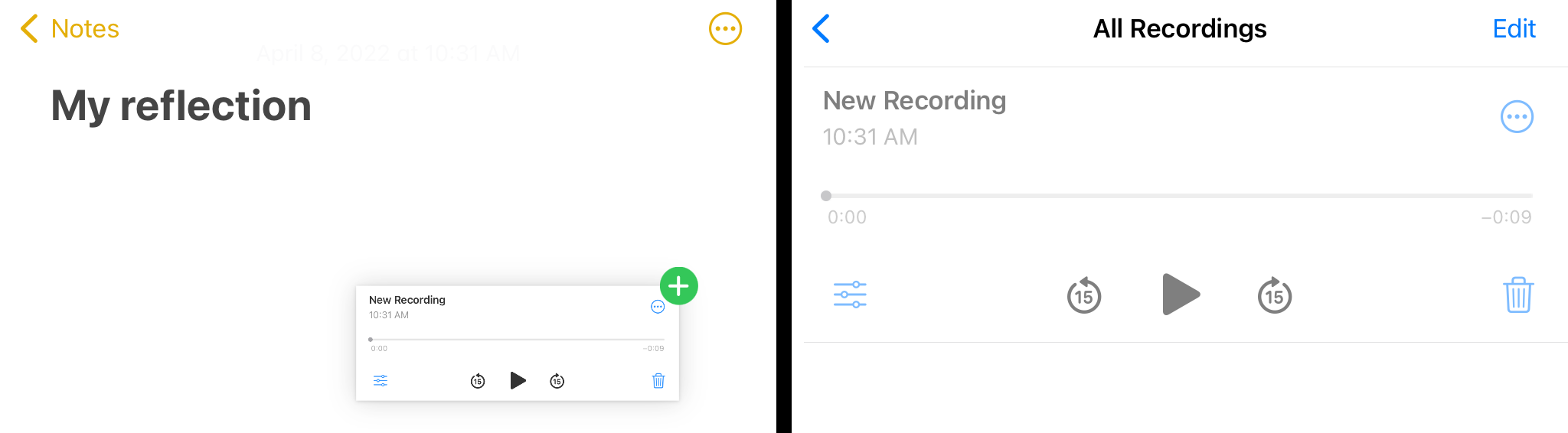

Teaching and Learning Implications: Like the video examples above, this feature allows for audio reflections in your recorded voice or the voice of your students. You may also use this feature to collect audio files and easily organize them with notes in the Notes app as you plan a larger project, such as a podcast or an audio-recorded oral history.

Tags

The Notes app recently added the ability to categorize notes with hashtags. Simply type a hashtag in a note, e.g., #creativity, and a single tap will give you to access all your notes that contain that tag. All your tags are visible in the Tags section of the Folders view of the Notes app.

Teaching and Learning Implications: This is a welcome organizational feature for all users of the Notes app!

Collaboration

Finally, notes can be shared among users with Apple IDs. Tap the more symbol with three dots (ellipsis) in a circle (...), select Share Note, and select among the various share options available. You can decide if the people you invite can make changes or if they can add others to the note. (If you don’t need collaboration features, you can also just share the note with someone.)

Teaching and Learning Implications: While only Barrington 220 staff and high school students have the ability to use Apple IDs at this time, we hope to be able to add Apple ID access at all grade levels soon to be able to fully take advantage of all of Apple’s Collaboration features across the Notes app and other apps.


Infinite Campus Virtual One-Day Conference This Week!


The 2022 ILICUG (Virtual) Conference is underway! As mentioned in last month's newsletter, the Illinois Infinite Campus Users Group is hosting a virtual one day conference on Wednesday, April 13, 2022. This conference is combination of live sessions and pre-recorded sessions that can played at the attendee's leisure. Some of these sessions are modeled on the "Flipped-Classroom" model and questions about the topics can be submitted in advance of the live session via a Google Form.

This year, due to continuing social distancing and altered district policies on travel, ILICUG is bringing the conference to you. The presenters have recorded sessions that you can watch from the comfort of your office, classroom, or home, whenever it fits your schedule. You’ll be able to submit questions to the presenters of these sessions through the form below.

Then, on April 13, 2022, tune in for some live sessions. The live portion of the conference will kick things off with Zoom general session from the ILICUG leadership at 8:30 A.M., followed by a Zoom keynote from Infinite Campus Founder & CEO, Charlie Kratsch at 9:00 A.M. Throughout the rest of the day, join live roundtable discussions led by the presenters, who will take the time to answer the questions you submitted in the form.

Because of the virtual format, there is no registration required! Simply watch any of the sessions here, fill out the question submission form if you have any questions for the presenters by April 11, 2022, and then join us live on April 13, 2022.

Click here to view the links to the recorded and live sessions, as well as the questions submission form. We hope to see you on April 13, 2022!

New System Login Security Coming Soon!

As mentioned in a February 2022 #bsd220tech article, the use of multi-factor authentication (MFA) will soon become a critical tool used along side other Barrington 220 systems (Google, Skyward and Infinite Campus). The tech team is gearing up for a district-wide staff rollout. MFA is now a requirement for Barrington 220 (and other school districts) to maintain cybersecurity insurance coverage.

Systems that use multi-factor authentication (MFA) require two or more methods for a user to access a system, usually consisting of something you know (i.e., a password) and something you have, a device such as a computer, iPad, cell phone, or office phone. This second step of authentication greatly enhances the security of our systems and helps in proving that it is truly you logging into one of our systems.

Each of our Barrington 220 employees has a district computer, an iPad, and/or an iPhone that will work with this multi-factor authentication system.

We do not restrict the access of Barrington 220 Gmail from personal devices. Similarly, for your convenience, we will now allow the use of a personal mobile phone for MFA authentication. This is not necessary, but may be preferred by some staff. Typical of our Google system, logins to Google, Skyward and IC are not going to be needed on a daily basis, but when they are needed, a device used for MFA will need to be nearby. Your mobile phone is likely typically near you—while your iPad and/or computer may not be as readily available. The mobile phone app that is needed for our MFA is Microsoft Authenticator, and this app is available for both Apple and Android phones.

Is there an upside with MFA? Absolutely! MFA makes access to systems such as Infinite Campus and Skyward a breeze. Are you already logged on to Google using MFA? Great, then logging in to Skyward or Infinite Campus will take one click, with no username or password input required. These logins will stay “persistent” for a period of time provided you are using the same computer web browser or computing device (e.g., iPad, iPhone).

Stay tuned for further information!

Thursday, March 3, 2022

Tips for Using Your Mac Laptop in School and Beyond

Recently the online technology news site 9to5Mac hosted a thread on Twitter where they asked "What's a hidden Mac trick more people should know about?" The thread contained many excellent tips and tricks, and as I read them, I was reminded of many others. Inspired by this list, I have compiled several tips here that I believe are useful for classroom and general school use here in Barrington 220. Please note that these tips are not necessarily "hidden," but I do use all of them myself and find them useful. 

Access Emoji and Other Special Characters

Use the keyboard shortcut Control+Command+Space to display the full menu to access all special characters available on the Mac. Click the character to select it and then copy it (to paste it later); double-click the character to insert it at the insertion point in a document.

You can also access the menu using fn+E (function+E). This may be easier to remember since the "E" stands for "emoji."

Three-Finger Click for a Definition (and More)

Three-finger click on any word in almost any application to get a pop-up menu with a dictionary definition, thesaurus entry, and other information.

Access Spotlight

The Mac has a feature called "Spotlight" that originally allowed a file search function on your Mac. Over the years, Spotlight added many more features and now gives search results for Applications, websites, Mail, Contacts, images, web search history, dictionary, calendar, music, and many file formats. Spotlight also has features in addition to search results:
  • Convert currency
  • Convert temperature
  • Convert measurements
  • Solve math problems (including equations)
Zoom in to Your Mac Screen

On iPad, it’s easy to pinch to zoom to make text and other views larger. A similar function is also available on a Mac screen if you have it set up.
  1. Open System Preferences (in the Dock or under the Apple Menu).
  2. Click to open Accessibility.
  3. Click Zoom in the left column.
  4. Check the box Use scroll gesture with modifier keys to zoom: and select ^Control from the pop-up menu.
  5. Close System Preferences.
From now on, you may press and hold the Control key and use a 2-finger scroll gesture (up and down) to zoom in and out anywhere on the Mac screen. The cursor arrow will be the center of the zoom.

Use Text Replacement to Make Typing Easier

You can create custom shortcuts to easily type individual characters, emoji, or even blocks of text. For example, you could set up the feature to type the text "/smile" and make the emoji smile character appear or set up "/sig" to automatically insert your personal contact information. 
  1. Open System Preferences (in the Dock or under the Apple Menu).
  2. Click to open Keyboard.
  3. Click the Text tab at the top.
  4. Click the + in the bottom-left corner.
  5. Type a text in the Replace column (use a text string you will likely not type for another purpose).
  6. Type (or paste) the character(s), text, or emoji(s) in the With column.
  7. Close System Preferences.
Use the Preview App to Make PDF Edits

Use the Preview App (in the Applications folder) to open a PDF on your Mac, and you will have access to many basic PDF editing features.

In the left column of a multi-page PDF, you can click to drag the page thumbnails to rearrange or delete them. You can also drag pages from other open PDFs to add pages to a PDF.

You may also use the Markup icon (a pen tip in a circle) at the top-right of the Preview window to access several tools to add text, shapes, and annotate a PDF.

Learn Even More!

If you would like to see all the tips that inspired this article, check out the original @9to5mac tweet here.

Spring is Busy at the Barrington High School Library

There is a lot going on at the BHS Library in March 2022. This guest post from Janet Anderson and Jennifer Walsh will help get you up to date!

Teachers Learn About the New BHS Creativity Lab

The BHS library has been busy with teachers learning about the tools we have in the BHS Creativity Lab, known as "The Box." During our Institute day, Teachers learned how to use our Sphero robots to see how easy they were to use, and invented ideas for how these can be used to engage students in projects. For example, one World Language teacher has used Spheros with students: one student reads the directions in the language they are learning, while the other follows the directions. We also had teachers learn how to operate our 3D printer and take something "theoretical" and create a realistic version. 

Teachers know they can book The Box for their classes. They may need desktop computers, greenscreen studio capability, or use of our 3D printer. Teacher Librarians Janet Anderson, Jennifer Walsh, and our LTAs Jayne Straumann, Denise Kolb, and Ian Roets, all assisted as teachers roamed through the various activities created for their learning.

Students and Staff Learn Together

On April 1 and May 6, 2022, our very own amazing BHS students are planning to present to any interested students during lunch periods. We will have music/GarageBand specialists, streaming specialists, podcasting specialists, and more. 

Our students will be learning from their peers as they explore ideas they requested to learn.

Learning the Research Databases

March is also the month that many BHS students begin their capstone research papers. Teacher Librarians will be busy visiting classrooms demonstrating how to use databases to ensure our students are experts when they enter their next level of education. 

Find a Great Book for Spring Break

Since Spring Break is just around the corner, we are promoting our books for teachers and students to take with them on break. The featured book for this article is Fire Keeper’s Daughter by Angeline Boulley. This book is a Printz Medal winner, a Morris award winner, an American Indian Youth Literature Award Young Adult Honor Book, and a Reese Witherspoon & Hello Sunshine Book Club Young Adult pick. 

In addition, this book is a New York Times Best Seller and is soon to be adapted for a Netflix TV special with Barack and Michelle Obama's production company, Higher Ground. With four-star reviews, Angeline Boulley's debut novel, Firekeeper's Daughter, is a groundbreaking YA thriller about a Native teen who must root out the corruption in her community 

Enjoy your March, enjoy your break, and bring along audiobooks, eBooks, or print books!


Popular Recent Posts