Wednesday, March 4, 2020

Research and Recommendations on Screen Time in Barrington 220

This article is written for teachers, parents, and community members to increase understanding about the differences between "screen time" and school uses of technology devices. Originally written in 2016, the article has been updated in March 2020.


Research and Recommendations on Screen Time in Barrington 220

For more than twenty years, I have served in some capacity as a district-level educational technology leader in school districts. Keeping current with research and best practices in the area of educational technology has not only been among my top priorities, but intersects more and more with all aspects of education. “Educational technology” and “education” are no longer the separate topics they once were as schools and districts like Barrington 220 continue to implement 1:1 technology device programs to improve opportunities for learning and teaching.

I have observed that the topic of technology use in and out of school has often caused a great deal of debate and consternation. While technology device use rises among Americans, the media increases coverage on the topic. The term “screen time” is the current shorthand for “technology use.” Internet users can search “screen time” in their favorite news service to find millions of matches for the term. At the time of this writing (March 2020), Google News returns over 700 million “screen time” results. Some examples include:
  • This is your child's brain on books: Scans show benefit of reading vs. screen time (CNN Health, 2020)
  • Secondhand screen time may be just as dangerous as secondhand smoking (Fast Company, 2020)
  • Too much screen time for toddlers may lead to unhealthy behaviors growing up, study says (USA Today, 2020)
  • Most Children Exceed Recommended Screen Time, Study Finds (US News & World Report, 2019)
  • Is Screen Time Really Bad for Kids? (New York Times Magazine, 2019)

Almost overwhelmingly, the topics in these headlines indicate that screen time is bad, or that screen time relates or leads to something that might potentially be bad. Digging deeper into these examples—often by simply reading the story—the situation isn’t quite as black-and-white as the headlines imply. Many articles assume that all screen time is the same, or worse, the author has never considered the idea that device use might vary from situation to situation. At least four different types of screen time exist (Common Sense Media, 2020):
  • Passive consumption (watch TV, listen to music)
  • Interactive consumption (play games, browse the web)
  • Communication (use social media, video chat)
  • Content creation (write, create art, make videos, compose music)

I would contend that at least one screen time category is missing from the list: School assignments and homework. I have had conversations with well-meaning parents who feel they must meticulously count screen minutes at school so the time can be subtracted from the total “allowed” minutes from some organization’s arbitrary screen time allotment. I understand the sentiment, but I fervently disagree with the notion that screen time spent in educational contexts must be treated as a vice that we must carefully control. Barrington 220 teachers take great time and care to create lessons and activities that integrate technology, and the screen time students invest in completing school activities is far removed from the potential ill effects of technology use. Learning is not a pathology that we need to regulate.

My opinion about why technology is often viewed in a negative light is that technology represents and causes constant change. Since most adults who are now parents did not grow up with the technology their children use, technology is an easy target for inciting fear, frustration, and sometimes moral panic. Further, family use of technology can be fundamentally different from school use of technology. While articles and studies usually specify unproductive technology behaviors cited in studies as “playing” on a device, or other unregulated versions of staring at screens, classroom uses of effective technology are carefully planned and assigned like any other work assigned by professional educators. Screen time at school ≠ screen time out of school.

Flawed logic is also sometimes a factor in negative technology judgement. “I didn’t have Technology x, and I didn’t experience [negative thing]. My child has Technology x, therefore, Technology x is the cause of [negative thing]!” Or my favorite, “I didn’t have Technology x, and I turned out OK. Therefore, if my child doesn’t use Technology x, they will turn out OK!” The mysterious Technology x can be any newfangled thing—the Internet; YouTube (or any popular website); Tik Tok (or any social media site, app, or service); smart phone, iPad, Chromebook (or any device); Fortnight (or any video game)—or any combination.

One significant issue with “screen time” is that the term itself is misleading. The term implies that the “evil factor” is the time spent in front of a screen. “Screen time” does not acknowledge the different types of screen activities outlined above. Common sense suggests that a child actively engaged in writing, organizing, recording, editing, and posting an original video is having a very different screen time experience than a child passively binge-watching “epic fail” videos in rapid succession on YouTube. 

About ten years ago, an oft-cited source for imposing screen time limitations was released by the American Academy of Pediatrics (AAP): Health Effects of Media on Children and Adolescents (Strasburger, Jordan, & Donnerstein, 2010). This decidedly anti-screen-time source included a detailed listing of possible negative effects of media on children and teens, but at no point did the AAP acknowledge that different types of media use exist, nor did they attempt to recommend different guidelines for different media activities. 

But alas, in May 2015, the AAP realized that the guidelines they had been advocating were in need of an update. AAP authors acknowledged in their organization’s newsletter, “In a world where ‘screen time’ is becoming simply ‘time,’ our policies must evolve or become obsolete” (Brown, Shifrin, & Hill, 2015). At the AAP’s Growing Up Digital: Media Research Symposium, long-time media researcher Vicky Rideout (VJR Consulting, 2016) urged members that “screen time should be classified in terms of consumption, creation, and communication, and that the specific content and context of media use should also be considered” (Shifrin et al., 2015). Other experts at the symposium reported that “media content matters more than the media platform or time spent with media. If quality content is available, the child’s interactions with media can have a positive impact” (Shifrin et al., 2015).

In 2016, the American Academy of Pediatrics (2016a) released their updated guidelines. Now the APP advocates the following to parents for young children (age 18 months to 2 years):
  • 18 months—discourage screen media other than videochat.
  • 18 to 24 months—choose high-quality programming or apps and use them together with children.
  • 2 years—set media limits (1 hour or less per day recommended) of high-quality programming, and co-view or co-play with children.
Perhaps more important than an arbitrary time recommendation focused only on screens, the AAP (2016a) also promotes a balance between screen time and other activities for all children:
  • Get adequate sleep (8–12 hours, depending on age)
  • Engage in physical activity (1 hour)
  • Spend time away from media
  • Designate media-free times (e.g., family dinner)
  • Designate media-free zones (e.g., bedrooms)
Another potential issue discussed in the context of screen time is eye strain. The American Optometric Association (AOA) discusses digital eye strain (or Computer Vision Syndrome) and offers guidelines to help alleviate the effects of prolonged screen use. One recommendation of the AOA is to follow the 20-20-20 rule: “take a 20-second break to view something 20 feet away every 20 minutes” (American Optometric Association, 2016). 

Many devices offer built-in solutions to alleviate potential eye strain that can be enabled in just a few taps. One example is Night Shift, a setting on Apple devices that “automatically adjusts the colors of your display to the warmer end of the spectrum—making the display easier on your eyes” (Apple, 2020). This setting is found on iPad and iPhone under Settings > Display & Brightness > Night Shift. The setting is also available in macOS by opening System Preferences > Displays > click the Night Shift tab.
Unfortunately, the Internet doesn’t “forget” previous research, nor does it spontaneously update outdated information, especially when the previous ideas were aggressively covered by media in the past. To further complicate the situation, different organizations often report conflicting findings and recommendations. Whether we are parents, teachers, and/or other leaders, we can help cut through clickbait reporting and pop culture sensationalism to find current research and best practices to help our children navigate these important issues. The fact is that the world is different from when we were children, and the use of technology—including screen time—introduces factors that we must consider.

One organization active for many years delivering balanced advice to families and schools is Common Sense Media (also available in Spanish). I have recommended this group frequently and urge parents, teachers, and leaders to use this site as a starting point for learning about issues and making informed decisions about technology and media use. 

Based upon the work of Common Sense Media, I also recommend The Smart Talk (also available in Spanish by changing the language in the lower-right corner of the webpage), an online activity co-sponsored by the National PTA that allows parents and children to work together to have a clear conversation about technology devices and online responsibility. The resource allows parents and their children to consider a range of topics with multiple decision points customized to each family’s beliefs. The Smart Talk results in a set of home guidelines in the form of a contract that can be signed by the parent and child.

The American Academy of Pediatrics (2016b) also offers an online tool for families: Create Your Family Media Plan (also available in Spanish). This tool allows customized plans to be created for families with children of multiple ages (18–24 months, 2–5 years, 6–12 years, 13–18 years) and the resulting document may be printed or posted on social media.

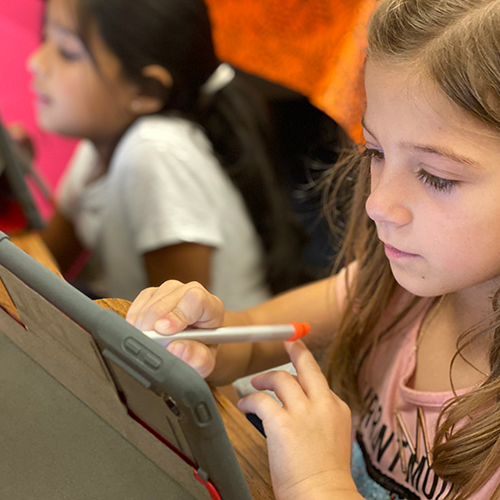
In Barrington 220, uses of technology for learning are created and/or selected by teachers. iPad and other technology use will vary among grade levels, teachers, and courses. Using technology for learning is not the same as “playing” on devices or other frivolous activities that are warned against in screen time articles. Parents who are worried that their children might be off task while using learning devices—or simply wish to learn more about how their child is learning—may consider several methods to view digital classroom activities:
  • Ask your child to see a course or assignment in Schoology. Schoology is Barrington 220’s primary Learning Management System where teachers post assignments and other class resources. Teachers of younger students may use Seesaw to communicate assignments and other information. 
  • Also ask your child to check out our district’s cloud-based drive and productivity app system. Students in all grade levels in Barrington 220 have access to Google Drive and G Suite for Education (Google Docs, Sheets, or Slides) for school activities.
  • Every grade level has a set of apps available for download through the Self Service app on district iPad devices. The app selections vary by grade level.
  • Check the Infinite Campus (IC) Parent Portal. IC is Barrington 220’s student information system that stores final grades on assignments and provides access to other important student information.
  • Email your child’s teacher if you have specific questions about how the teacher communicates assignments or organizes digital class resources.
  • Perhaps the best option of all is to ask your child for a live demo of how they are using iPad for learning in and out of school by watching them work on some current assignments and asking questions about the apps and systems they are using.

Finally, please also visit the Barrington 220 One to World pages on the district website, including the Parent Information page. Also watch for live, live-streamed, and pre-recorded presentations offered in the Barrington 220 community about various aspects of technology use in and out of school. We believe that our students need guidance using technology and media not just to prepare for college and career, but to live and function in our current world. No better opportunity exists than for Barrington 220 to partner with families and community resources to help our students navigate our ever-changing digital landscape.


About the Author

Dr. Matt Fuller is Assistant Superintendent for Technology and Innovation at Barrington School District 220. He has served as an administrator in school districts including Winnetka, Des Plaines, and Wilmette (Illinois). Dr. Fuller has been an Apple Distinguished Educator since 2007 and frequently presents at education conferences about learning and teaching using technology.


References

American Academy of Pediatrics. (2016a). Where We Stand: Screen Time. Retrieved from www.healthychildren.org/English/family-life/Media/Pages/Where-We-Stand-TV-Viewing-Time.aspx

American Academy of Pediatrics. (2016b). Create Your Family Media Plan. Retrieved from www.healthychildren.org/English/media/Pages/default.aspx#wizard 

American Optometric Association. (2016). Computer Vision Syndrome. Retrieved from www.aoa.org/patients-and-public/caring-for-your-vision/protecting-your-vision/computer-vision-syndrome 

Apple. (2020). Use Night Shift on your iPhone, iPad, and iPod touch. Retrieved from https://support.apple.com/en-us/HT207570 

Brown, A., Shifrin, D. L., and Hill, D. L. (2015). Beyond ‘turn it off:’ How to advise families on media use. American Academy of Pediatrics News (36), 10.

CNN Health. (January 16, 2020). This is your child's brain on books: Scans show benefit of reading vs. screen time. Retrieved from https://www.cnn.com/2020/01/16/health/child-brain-reading-books-wellness/index.html 

Common Sense Media. (2020). How much screen time is OK for my kid(s)? Retrieved from www.commonsensemedia.org/screen-time/how-much-screen-time-is-ok-for-my-kids 

Fast Company. (January 25, 2020). Secondhand screen time may be just as dangerous as secondhand smoking. Retrieved from www.fastcompany.com/90454545/copycatting-parents-screentime-may-be-just-as-dangerous-as-secondhand-smoke 

Kamenetz, A. (January 6, 2016). Kids And Screen Time: A Peek At Upcoming Guidance. NPR. Retrieved from www.npr.org/sections/ed/2016/01/06/461920593/kids-and-screen-time-a-peek-at-upcoming-guidance 

National PTA. (2018). The Smart Talk. Retrieved from https://thesmarttalk.org  

New York Times Magazine. (December 18, 2019). Is Screen Time Really Bad for Kids? Retrieved from www.nytimes.com/2019/12/18/magazine/screen-time-kids-teens.html 

Shifrin, D., Brown, A., Hill, D., Jana, L., and Flinn, S. K. (October 1, 2015). Growing Up Digital: Media Research Symposium. Retrieved from www.aap.org/en-us/Documents/digital_media_symposium_proceedings.pdf 

Strasburger, V. C., Jordan, A. B., and Donnerstein, E. (2010). Health Effects of Media on Children and Adolescents. Pediatrics (125), 756–767.

US News & World Report. (November 26, 2019). Most Children Exceed Recommended Screen Time, Study Finds. Retrieved from www.usnews.com/news/health-news/articles/2019-11-26/study-most-children-exceed-recommended-screen-time 

USA Today. (January 28, 2020). Too much screen time for toddlers may lead to unhealthy behaviors growing up, study says. Retrieved from www.usatoday.com/story/news/health/2020/01/28/how-much-tv-should-your-toddler-watch-too-much-may-bad-health/4596670002/ 

VJR Consulting. (2016). Who we are. Retrieved from http://vjrconsulting.com/who-we-are


Enhancements to the New Infinite Campus Student Advisory Tool

Infinite Campus released the new student Advisory Tool earlier this year and recently added enhancements that classroom teachers will find valuable.

Click here for additional information on the enhanced Student Advisory Tool.

Nearpod Revisited

Nearpod is an online platform used to build interactive presentations designed to incite optimal student engagement. Nearpod can be used in a live classroom environment, or alternatively, presentations can be assigned for independent, self-paced work.

The Nearpod platform offers access to a comprehensive library of pre-made content. The presentations are fully editable and can be tailored to match virtually any lesson plan. Nearpod has been available to Barrington 220 teachers for several years, however; the recent updates coupled with newly enabled content packs offer a great opportunity to take another look.

Our Barrington 220 Nearpod representative has kindly opened up a trial of three new content packs for the remainder of this school year (summaries provided by Colin Kiely at Nearpod):
  • SEL (Social Emotional Learning) - These lessons are for all grade levels and discuss various topics or concepts that affect how students feel, navigating social media, or respecting your peers. All lessons are customizable, and I recommend adding additional resources or content that connects directly with Barrington 220 district initiatives. These lessons help discuss "what it means to be a good person" with young students, and "how to be a responsible young adult" moving forward in grades.
  • Flocabulary Lessons - These are premade Nearpod lessons built specifically around various Flocabulary videos. Each video offers educational content full of vocabulary and concepts spanning across all subject areas set as lyrics to hip-hop songs. These lessons offer an abstract view on topics you already teach on a daily basis, presented in a new way to help different learners.
  • Historical Perspectives in Literacy (HS only) - This pack is meant for Social Studies educators, Grades 6–12. These lessons are more robust discussions of people and events that are usually not covered in most history books. Each lesson uses multiple secondary sources (curated by the Nearpod content team) to use evidence-based learning within each assessment. Lessons typically address individuals and events focusing on different perspectives of events in both American and world history.
Check out the newest feature updates in Nearpod:

Learn about these updates and more from the Nearpod Update Blog.

Nearpod is fully integrated with Schoology and easy to use from the Nearpod website or within Schoology. If you have an existing Nearpod account, please login with Google to check out the new features and content.

Excited to give it a try? Contact sshelton@barrington220.org to get signed up for a new account.


It’s Time to Upgrade Your MacBook Air Laptop!

On October 7, 2019, Apple released macOS Catalina (version 10.15), the sixteenth major version of its desktop operating system. Since then, the Technology Department here at Barrington 220 has been testing applications, upgrading back-office systems, and waiting for Apple to fix all the little bugs that accompany a new version of an operating system. I am pleased to tell you that the testing, upgrading, and waiting are now complete—and it's time to upgrade our Mac operating systems.

In the next few days most of you will receive a communication about your eligibility to upgrade your macOS. Most staff will get instructions on how to upgrade to Catalina. Other staff will receive a communication that you aren’t yet eligible to upgrade to Catalina because you don’t have enough free space on your computer and what steps you can take to free up space on your computer. If you need to free up space, you are encouraged to reach out to your building LTA or a Technology Support team member to assist you.

The upgrade process can take between 30 and 60 minutes so please plan your upgrade timing accordingly.

The most important step in the upgrade process is to back up your important data! Building LTAs and Technology Support team members will be standing by if you have any questions about what you should backup and how and where to back it up. If you run into any issues during the upgrade process, please call x.1500 so we can get you back up and running as soon as possible.

Introduction to Apple Classroom

More and more teachers are discovering the powerful tool from Apple called Classroom. Apple Classroom is different from Schoology or Google Classroom because it is not intended to be a Learning Management System. While those tools are designed to manage an online learning space, Apple Classroom is designed to manage the workflow of your students in the physical classroom environment. Classroom works on both the iPad and MacBook Air. Many Barrington 220 teachers are running Apple Classroom on one device while facilitating their lesson from the other.

There are several features of Apple Classroom that make it effective for managing the focus and flow of your classroom environment. After the first time you set up and connect Classroom, students automatically connect to your class each time they enter. Classroom allows you to see what your students are doing on their devices and navigate their devices to specific documents, apps, or webpages. In addition, you can create and maintain groups that can be shuffled and reorganized on the fly with just a few taps.

Key Features of Apple Classroom

Open a specific app on student iPad devices. As long as you and the student have an app on the iPad, you can open the app when you are ready for them to use it. Through this feature, you can lock the students into that app so they can’t go to other places, or you can allow them to move around to other apps.


The Navigate feature works just like the Open feature, but for websites. You can navigate students to an online source. Just like with Open, you can choose to lock students into one website or allow them to explore other apps and websites. Pro Tip: Save the sites you use frequently in class to your bookmarks for a quick navigation.


Hide allows you to hide apps on student devices. This can help avoid distraction and keep students focused on what is needed at a particular time and place.


Lock allows you to lock student iPad devices so they cannot be used. This feature comes in handy when you are trying to get the attention of the whole class while they are doing independent or small group work on devices.


Mute allows you to disable the sound on student iPad devices.


With View Screen, you can view the individual screens of the students in your class. While this feature allows you to monitor your students for classroom management purposes, it can also be used to view student work, get quick formative feedback, or provide a discreet way for students to let you know they need help.


The Group feature allows you to create, maintain, and adjust small groups in your class. Groups are automatically created based on what apps students are using (there’s even a group for students with low battery life!). In addition, you can create groups and push out differentiated materials.

AirDrop

One of the most powerful features of classroom is the ability to AirDrop (wirelessly send) files to an entire class at once. While you are using Classroom, your class will appear as the first AirDrop option to share documents, photos, vidoes, spreadsheets, or anything you want your class to have. With this same feature, students can also AirDrop documents to you that will appear in your Classroom inbox.

End Class Report

When your class is over, tap End Class in the upper-left corner of the screen. This will give you a report of your student device use in class. You can see every app that each student used during class along with when and how long they were in use. End Class is one way to get instant feedback on how engaged or distracted your class was.

Set up Apple Classroom

Setting up Apple Classroom is easy. You can download the app from the App Store right now. (Classroom in NOT available in the Self Service app because students do not need the app to use it.) 

The teacher interface is very intuitive. Simply tap the plus (+) to create a new class, name your class, and invite students. Once you invite students you will get a code to share with them. While you are on the Invite Students page, students will see a Classroom icon just below the Bluetooth icon in the Settings list on their devices. Students will tap Classroom > tap your class > and enter the code.


Behind-the-Scenes Improvements
Previous users of Classroom may have noticed that the standard setup required students to give permission for you to view and lock their screens. Recently, the Technology Team altered our settings to remove this option for students. Now, student iPad devices automatically allow permission for the teacher to view and lock screens (students no longer have the option to opt out).

Learn More
Are you interested in learning more about Apple Classroom? Stop by your library and ask your LTA to help you set it up and begin using it. You can also read through the Getting Started with Classroom: A teacher’s guide to the Classroom app for more in-depth information about the features available.

Popular Recent Posts