Friday, December 11, 2020

Use Mixtapes to Share Flipgrid Videos with Parents


Are you looking for great ways to share your Flipgrid videos with parents? Creating Mixtapes in Flipgrid allows teachers to share "view only" versions of student recordings. Educators can choose any video from and grid or topic.

Begin by logging in to Flipgrid.

Click Mixtapes from the dropdown menu at the top.


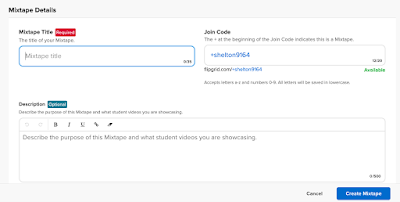
Click Create Mixtape.


Enter a title for the Mixtape.

Use the default join code, or create your own. (The + sign indicates that this is a Mixtape.)

Provide a Description if desired.


Add a password if desired.


Click Create MixTape.


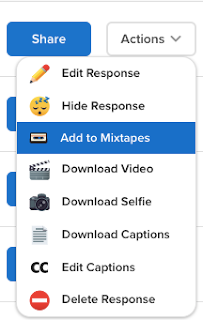
Click Actions on the right side of the video you would like to add.

Click Add to MixTapes.


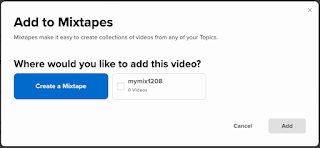
Add video(s) to an existing Mixtape or Create a Mixtape. Click Add.


Click Share to create a view only link for parents, or publish to social media, Seesaw, Google etc.


Click here to learn even more about Mixtapes.

Strategies to Help Students Engage in Remote Learning

As remote learning becomes more comfortable and routine, teachers are finding ways to motivate their students and raise the level of instruction like never before. One struggle that persists is getting kids to participate in Zoom sessions to the same level they might in class. Whether it's getting kids to turn on their cameras, speak up, or simply stay on the call, some students find it difficult to stay engaged.

Recently, I asked Barrington 220 teachers to share their best discoveries and strategies for getting kids to participate and engage in learning while on a video conference.

Here are the best lessons we’ve learned so far about getting kids to engage in remote learning. (Responses have been edited for clarity.)


1. Teaching and learning is now and will forever be predicated on building strong relationships with students. Students who respect their teacher and believe that their teacher cares about them will engage in learning.

Elementary teacher: Everyday I start with a question of the day. Today it is, "What is your favorite cookie?" It takes 10 minutes each day, but I feel like it's valuable because it gets the kids comfortable talking and makes them feel connected. By the time I have started the lesson, every kid has already talked in class. I would take 30 minutes of quality instruction where students are engaged over 40 minutes of 'meh' any day.

Elementary teacher: My best advice is to take time to talk and get to know your students. Then they feel comfortable. To do this, I put my entire class in separate breakouts rooms. Then I visit with each person. I have found when kids know it is just the two of us in the breakout room, they will turn on their cameras and talk to me. It is all about building relationships and getting them to trust you.

Middle School teacher: I am also learning more about my students and making connections. I write down interesting pieces of information I learn. It makes me feel like I know them.

Middle school teacher: I have found that doing personal polls in Zoom at the beginning brings kids in and gets them engaged. I then share the results with the class and we have a quick two-minute discussion about it. It just makes it more personal, and the kids like talking about themselves and each other.

2. Students may first need external incentives to engage before wanting to do it on their own. Once students have engaged in distance learning, they tend to find the experience positive, and want to do it more. But they don’t always get that first taste willingly. Some teachers have found that incentivizing students to participate at first, leads to willing participation later.

Elementary teacher: At the beginning of class I have been playing a "mystery sound of the day" only once I see all the videos. I reveal the answer at the end of the session to try and keep attendance for the whole time.

Elementary teacher: On the last day of school in the spring, I told the students there would be a mystery guest. I had invited their former extended teacher to join our Zoom. I think it definitely encouraged kids to join to see who it would be. A little mystery gets their attention.

Middle school teacher: One way I think helps students stay engaged is that each student has a job during Zoom. I think this makes them feel responsible for part of the meeting.

3. Students may need to start slowly. Some teachers have found success by providing opportunities for students to talk to just the teacher, or in small groups at first before asking them to engage a larger group.

High School teacher: The most success I have had is putting the kids into their own breakout room and popping in to talk to them individually while everyone else works on an asynchronous activity. I have noticed that my freshmen are starting to open up more—even through chat. I try to remember little things about them that they told me prior, and the comfort is starting to get better.

Elementary teacher: I find it helpful to assign students a long-term teammate that they work with over the course of several weeks. Students share a Google Slide with this teammate, include a picture of themselves, and as tasks are assigned, they are each other's advocate in learning.

4. Using available tech tools to your advantage can also get kids to want to participate. It may be hard for a student to turn on their camera and speak up, but it’s an easier introduction to allow them to use the chat, answer a poll question, or message through Schoology. Students who participate digitally are likely to grow in their comfort with participating in other ways as well.

Elementary teacher: One of the ideas that has worked great for students in Grades 3–5 in STEM is when we ask students to "flood the chat." We get a lot of thoughtful responses, and the teacher can share out. Older students will sometimes even piggyback off of another comment or ask a clarifying question in the chat.

High School teacher: I set up a poll that asks students a simple question like how they are doing as a bellringer, and then go over the responses as a class. I ask them a question and have them respond with an emoji in the chat, or I ask them to respond in the chat with a written response privately to me, read answers anonymously, and then have a class discussion.

Barrington 220 Joins Cybersecurity Group MS-ISAC


Barrington 220 has joined the Multi-State Information Sharing and Analysis Center (MS-ISAC) which now has over 10,000 state, local, tribal, and other government agencies within their ranks. This not-for-profit organization is backed by the Department of Homeland Security and provides a wealth of cybersecurity resources for their members. Here is their mission statement:

“The mission of the MS-ISAC is to improve the overall cybersecurity posture of the nation's state, local, tribal and territorial governments through focused cyber threat prevention, protection, response, and recovery”

In line with our School Board's goals and industry best practices, Barrington 220 continuously reviews our cybersecurity posture, based on the continuously changing threat landscape.

Monday, November 16, 2020

It Takes a Village: Barrington 220 Staff and Families Work Together During Distance Learning

With the move to distance learning this year, students are spending more time with their devices than ever. With that comes an increased possibility of students stumbling across content that may be distracting or inappropriate for them. The term “inappropriate” means different things to different people and will likely be defined depending on variables such as household rules or the age of the child.

We hear from parents who are concerned about adult content, social media, advertising, and online gaming that may be distracting their child from learning or, even worse, exposing children inappropriate or dangerous content. Parents and caregivers may find it difficult to stay on top of what children are doing while online and may not know what steps they can take to prevent students from viewing inappropriate content.

With a little knowledge, Barrington 220 staff members and parents can work together to help students navigate the difficulties of digital learning at home. Here are a few things all of us should know as we work together to keep our students safe and engaged.

Network Filters

Our district Internet content filters function on the Barrington 220 network and do not extend to devices when they are not connected to a district Wi-Fi access point. In other words, when students are in a school, our network filters block inappropriate content, but these filters do not follow the student home. When a student is using a district device at home, whatever filters the family has established through their home Internet provider are used. If a family has not established Internet filters at home, the student would be able to access potentially inappropriate content on their device while at home. 

Most Internet providers allow parents to easily establish and maintain filters and restrictions. Parents are encouraged to contact their home Internet provider(s) to find out how to set up filters on their home network. This may include contacting not provider(s) of the Internet delivered through Wi-Fi systems, but also mobile phone and "hotspot" Internet providers.  

Screen Time

Even with network filters set up at home, some parents may find that their student continues to be distracted by other things. After all, some online games, YouTube videos, or social media platforms may be deemed appropriate, but may cause issues because of the time of day or amount of time students are choosing to access them. In this case, parents may use the Screen Time feature available on the iPad. 

Screen Time allows parents to set restrictions, impose time limits, and establish rules for when and how long a student can use specific apps. Screen Time is completely customizable to a parent’s household rules. Parents can set time limits for specific apps and websites, or they can set downtime to shut down access at certain times of day. 

Parents can also use Screen Time to establish filters and restrictions that reflect the desired level of protection for each child. Older students may be given more access and freedom than younger ones. Any Screen Time rules that a parent establishes are protected by a passcode so students can’t change the settings once they are in place. Step-by step instructions on how to set up and use Screen Time can be found on the One to World page of the District website.

Self Service App

Barrington 220 offers over 300 apps and subscriptions to students. These apps have been vetted for compatibility, privacy, security, and instruction. All apps that have been approved for use by Barrington 220 are available in a Self Service app on the district iPad. Think of the Self Service app as a district-approved app store. 

Students in Grades PreK–8 only have access to apps in Self Service and do not have access to Apple’s App Store. However, high school students have access to the Apple App Store and may download apps in addition to the approved apps in Self Service. 

Parents can use Screen Time to limit access to the App Store app and/or place guidelines on the types of apps that can be downloaded.

More Resources

Barrington 220 offers resources and information to help parents navigate student device use. Parent will find step-by-step guides to set up Screen Time, connect to Schoology and Seesaw, and recordings of webinars on a variety of technology-related topics. Parents are encouraged to contact teachers, Library/Technology Assistants (LTAs) in building libraries, or other trusted staff members if they need more information on how to keep their student safe and engaged while in distance learning mode.

One to World iPad Program: Parent Information—The official District home for information about the One to World program, parents can access this page for resources related to Internet safety, Barrington 220 digital tools, cyberbullying, and more.

A Parent’s Guide to Distance Learning—Here parents will find a collection of webinars, resources, and Internet content related to device distraction and other important topics.

Local Districts Deal with Cybersecurity Attacks

You may have heard on the news that several local school districts have recently experienced cybersecurity attacks affecting different systems. So far the districts have included 219, 207, 211, 214, and 113. The Barrington 220 tech team and administration have been in communication with these districts and others, and we are working together to prevent future cybersecurity attacks.

Although Barrington 220 has not been affected at this time, these attacks on our neighbors are a reminder to us to continue to be aware of potential phishing attacks and report them immediately. 

As a reminder, here are some of the things to remember that may indicate you have a phishing email:

  • Is it a legitimate message? 
  • Were you expecting the message?
  • Is the message from who you think it is? 
  • Does the message convey a sense of urgency? 
  • Was the message sent to a group of people, including some you do not know? 
  • Was the message sent at an odd time of day? 
  • Does the message make you uneasy?

If you encounter a phishing message, please submit it to Google so we can act upon it. Click the three vertical dots (the “snowman” as some call it) in the upper-right corner of your Gmail browser window and click Report phishing.

Meanwhile, the Barrington 220 tech team is actively reviewing our systems based upon the information we are learning from affected districts. If additional mitigation efforts are required, we will apply them to our systems and contact staff if necessary.

Popular Recent Posts