Wednesday, January 18, 2023

Barrington 220 Completes WAN and Internet Upgrades

Barrington 220 has recently completed an upgrade of our Wide Area Network (WAN), increasing our bandwidth 10-fold. This new WAN encompasses our data network connections from each Barrington 220 building to the central point of our network, located at Barrington High School. In addition, our Internet bandwidth has been significantly increased to allow for additional growth and Internet access.


The costs of this project were covered in large part with funding from the federal E-rate program along with additional funding from the State of Illinois Department of Innovation and Technology E-rate consortium.

Combined with a recently completed upgrade of much of our school building network equipment, Barrington 220 continues to provide proven and consistent high-speed Internet access throughout the school district, via our dynamic, high-density capable network.

Tuesday, January 17, 2023

macOS Ventura and iPadOS 16 Now Available

Apple recently released the latest versions of their major operating systems—macOS Ventura for the Mac and iPadOS 16 for the iPad. We originally delayed users from installing those updates until we were sure Apple had exterminated the known bugs that might affect us here in Barrington 220. Over the last couple of months Apple has release some minor updates to both systems, and the Technology Department has released macOS Ventura 13.1 for MacBook Air laptops and iPadOS 16.2 for iPads.

An important prerequisite to upgrading the OS on you device is making sure you have enough hard drive space to allow the software to download successfully.

  • On the MacBook Air, if you click once on the Macintosh HD (hard drive) icon on your desktop to highlight it, then go to the File menu and select Get Info (or use the keyboard shortcut Command+I) you will get a window that will show you how much available space you have. We recommend at least 40GB of free space. 
  • On an iPad we recommend you have at least 5GB of free space available. You can check how much free space you have on your iPad by going to Settings > General > About where you'll find Available which shows you your available space.

We ask that you keep your devices updated with the latest versions of operating systems and software, and we recommend that you update your devices as soon as possible. If you need help freeing up space on your computer or iPad, please reach out to your building LTA or call x.1500 from a district phone, and we'll be happy to get you started.

Five Ways Teachers Can Use ChatGPT

This is Part 2 of a 5-part series on the implications of Generative AI on the future of education. Part 1 was a call to public educators to start paying attention to AI in schools. 

What is ChatGPT?

Generative AI is any artificial intelligence that creates new and original content. OpenAI is the company behind the trending application ChatGPT, which has gained millions of users since its launch in November 2022. OpenAI consists of three APIs (application programming interface):

  • GPT-3—Generates natural language text from user-generated prompts
  • DALL-E—Creates and edits original images from user-generated, text-based prompts
  • CodeX—Translates natural language to programming code

GPT-3 is the technology driving ChatGPT. The GPT stands for "Generative Pre-trained Transformer." ChatGPT was trained using a massive human-created text dataset and uses that knowledge to create original, human-like text-based responses when given a prompt. It works similarly to the more common next-word prediction you may experience with texting, Gmail, and Google Docs, but it uses over 175 billion parameters in its predictive algorithm to produce rich and complete texts. ChatGPT does not actively scour the Internet for information when a prompt is entered, it uses what it learned from the dataset to generate a response. 

ChatGPT creates natural language, text-based responses in a conversational, back-and-forth "chat" with the user. Think of it as an intelligent writing assistant like the AI navigation assistant in your car or an AI chatbot like Alexa or Siri.

What to know before you consider using ChatGPT

Users should consider whether ChatGPT is the right technology tool for their needs before trying it out. Here are some things to know before you dive in.

It can be slow.
ChatGPT is currently offered for free, and because of high demand, there are many times when ChatGPT is unavailable or slow with responses. OpenAI has added a feature that allows users to be notified when demand is low and they are more likely to get on. Once on the site, there is a limit to the number of prompts you can give in an hour and a day.

It collects personal information.
ChatGPT is not SOPPA or COPPA compliant. OpenAI (the company behind ChatGPT) collects user data and ChatGPT requires that users create an account and log in when they use the platform. Based on OpenAI’s privacy policy, ChatGPT may share user data with third-party vendors, law enforcement, affiliates, and other users, and therefore violates the Children’s Online Privacy Protection Act (COPPA) and Student Online Privacy Protection Act (SOPPA). ChatGPT should not be used by children under 13, and students aged 14–18 should not be compelled by teachers to create accounts and use the platform. 

It is not always reliable.
OpenAI lists several limitations for users of the platform:
  • ChatGPT sometimes writes plausible-sounding, but incorrect or even nonsensical answers. Rather than omit information, ChatGPT will try to answer the prompt to the best of its ability. It will sometimes insert “made-up” information that isn’t true. For example, one user found that when asking ChatGPT to include citations for sources, the AI fabricated sources that do not exist. In other examples, ChatGPT created a high-quality math word problem, but gave a credible-sounding—but incorrect answer—to the problem. 
  • ChatPGT may sometimes respond with harmful instructions or exhibit bias in its answer. Since it is based on human-generated information, it may reflect bias or inaccuracies of the human authors. 
  • Instead of asking clarifying questions, ChatGPT might guess about the user's intent if the prompt is ambiguous. This could produce answers that seem plausible, but do not answer the user's intended question. 
  • ChatGPT is not connected to the Internet and has limited knowledge of events after 2021. 
Responses get better with higher-quality prompts.
Have you ever heard the phrase, "You get out of it what you put into it?" This is true for ChatGPT as well. Consider this example:

Good Prompt: "Write a short essay about the water cycle."

Better prompt: "Write a short essay that is an introduction to the water cycle that a 12-year-old can understand. Include a list of key vocabulary terms at the end."

Best prompt: "Write an essay that is an introduction to the water cycle. It needs to be understood by a 12-year-old and takes about 10 minutes to read. Include a list of key vocabulary terms. Include 5 reading comprehension questions. Create a Spanish version as well."

As prompts get better, the output can also get better. 

Five Ways Teachers Can Use ChatGPT

If you're still with me and interested in trying it out, there are some powerful ways teachers can use this tool to improve their workflow, efficiency, and effectiveness. In each case, I provide examples of actual prompts I have tried. 

When using ChatGPT, remember that your experience, ability to discern, and personal voice remain relevant. Instead of copying and pasting the AI-created content verbatim, it's best to use it as a starting point for editing, adding to, and creating your own best version. All responses should be checked for accuracy. You should also consider if this is the right tool for the job. When using AI to generate a response, remember that even with your edits, you are starting with a voice that isn't your own. 

1. Lesson Planning

Create course, unit, and lesson-level learning objectives.
Create learning objectives for a lesson on information literacy for a 4th grade class

Tuesday, December 20, 2022

REWIND—Looking Back at #bsd220tech 2022 Newsletter Highlights


As 2022 comes to a close, the contributing authors of the Barrington 220 #bsd220tech staff newsletter would like to remind you that every article we publish is also available on a blog that’s easily accessible:

https://bsd220tech.blogspot.com

Authors from the Department of Technology and Innovation include Matt Fuller, Ty Gorman, Phil Hintz, Hector Ontiveros, Mark Polzin, and Russ Vander Mey—and our Assistive Technology author is the incomparable Kelly Key. 

We all wish you a Happy 2023, and we would like to remind you of a few popular articles we published in 2022 that you may want to review today!

REWIND to January 2022—Three Classic Myths about EdTech

Ty Gorman presented three “classic” educational technology myths:

  • Myth #1: I need to know everything about an app or feature before trying it with students.
  • Myth #2: If I want students to use an app, I need to first teach them how to use it.
  • Myth #3: As long as I use technology in some way, the students will be engaged.

Read the full article...

REWIND to March 2022—Tips for Using Your Mac Laptop in School and Beyond

You might wish to review some of the tips for using your district MacBook Air laptop, including:

  • Access Emoji and Other Special Characters
  • Three-Finger Click for a Definition (and More)
  • Zoom in to Your Mac Screen
  • Use Text Replacement to Make Typing Easier
  • Use the Preview App to Make PDF Edits

Read the full article...

REWIND to April 2022—Secret Powers of the Often-Overlooked Notes App

The Notes app on your iPad and Mac can share its information among any of your Apple devices, and it has many features, including:

  • Search
  • Text Checklists
  • Dictated Text (Speech to Text)
  • Scan to PDF
  • Screen Captures
  • Photos, Drawings, Videos, and Audio
  • Tags
  • and more!

Read the full article...

REWIND to May 2022—The Benefits of Multimodal Knowledge Representation

Ty Gorman reminded us that "the true benefit of technology comes when students use iPads to do things that were difficult or impossible to do without them...students can create a piece that incorporates text, video, audio, and interactive widgets..." He advocates that "creating a multimodal piece also benefits the student producing it."

Read the full article...

REWIND to October 2022—New iPad 9 Features for the Classroom

Several new learning and teaching opportunities are built into the iPad Generation 9 we are using now, including:

  • Front Camera (Center Stage)
  • Live Text (Speak, Translate, and Copy text)
  • Visual Look Up (Camera and Photos apps)
  • and more!

Read the full article...

And don’t forget about our quick iPad Feature Review that included Split View, Slide Over, Scribble, Quick Note, Focus, and Swipe Gestures!

Read the full article...

Happy New Year from the Barrington 220 authors of the #bsd220tech newsletter!


Remove a Background from a Photo on iPad

One of the many new features built into our iPad Generation 9 devices is the ability to easily select the subject (person or object) in a photo (or paused video frame), copy it, and paste it into another app with the background of the photo removed. 

To try this yourself, open the Photos app on the iPad and find a photo with a prominent subject such as a person, pet, or object. You may also open a video and pause the video at any point.

Tap and hold on the subject of the photo and wait for an outline effect to animate the selection. Lift your finger.

Notice that when selected, the outer edge of the subject glows, the background becomes slightly darker, and a Copy | Share pop-up appears. 

Tap Copy.

Press the Home button on the iPad and tap to open any app that allows pasting of images. In this example, the Book Creator app is used.

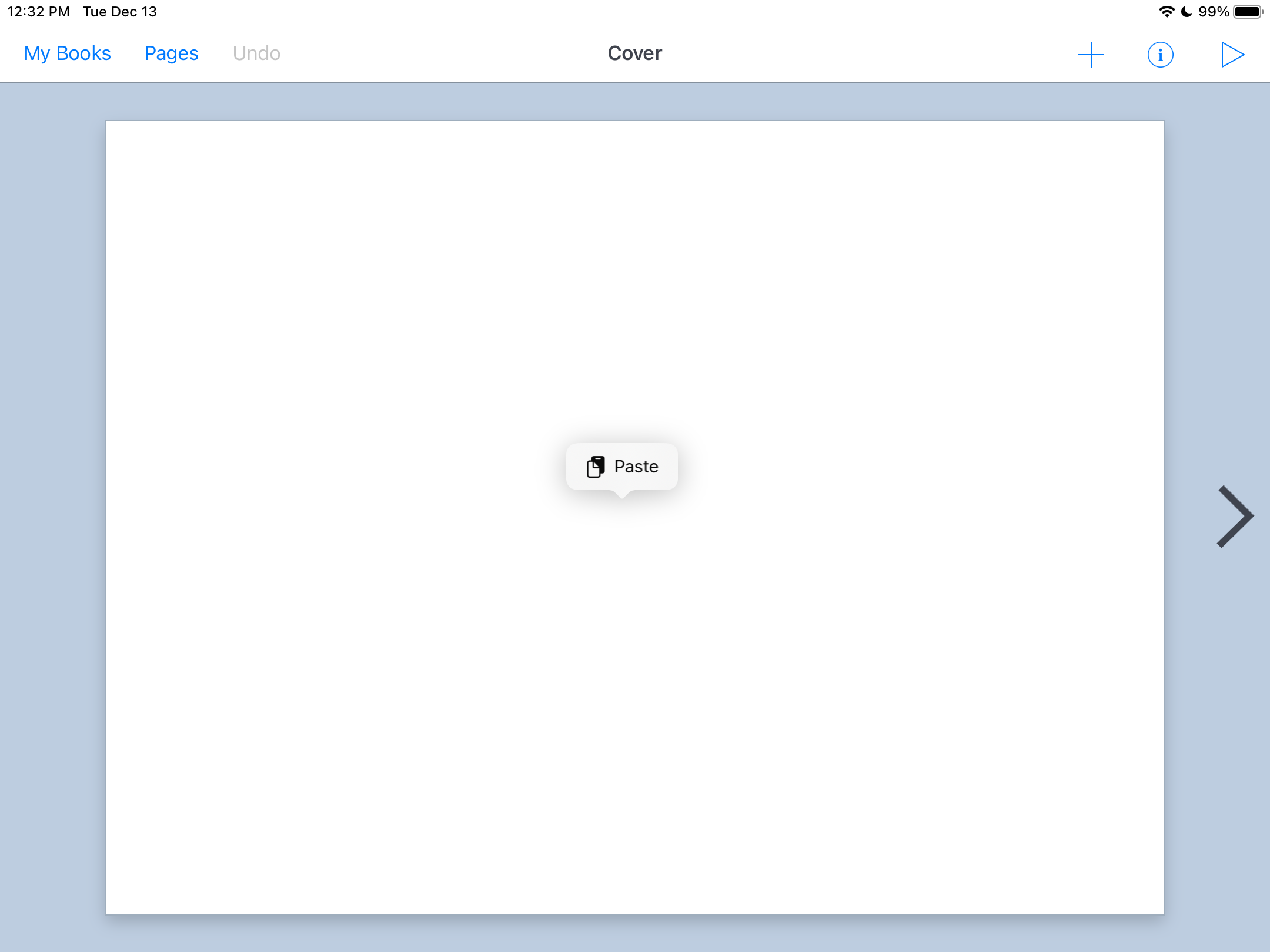
Tap the screen on a page in the Book Creator app to display the Paste menu.

Tap Paste. The subject from the photo appears in Book Creator with the background removed.

Using an Apple app such as Keynote or Pages, the subject will retain its transparency and can be pasted over different colors, patterns, or backgrounds. This example shows the image pasted into a Keynote slide with a winter-themed background layer.

This feature is possible because of the built-in Neural Engine in the iPad Generation 9 that drives machine learning functions. In this case, machine learning allows the iPad to recognize and isolate the main subject of an image. 

With that in mind, you might find that this feature has a few limitations. I noticed that the machine learning algorithm makes the determination what the "subject" of the photo is and does not allow the user to select a different subject. In photos with multiple subjects, most of the time, subjects all are selected, requiring the use of cropping tools to remove unwanted parts of a selection. Also, the edges are not always selected perfectly, and sometimes part of the background is added to the subject—or part of the subject is omitted from the selection.

Taking the limitations into account, I still find this feature almost magical considering the amount of time and effort I have expended over the years to create this effect "by hand" with image editing software. 

Please note that this feature may also work on your personal iPhone and can be used on photos and videos you may have captured with previous devices.

For more information about this feature and others, check out the iPadOS 16 User Guide.


Popular Recent Posts