Since Barrington 220 became a licensed Zoom videoconferencing organization, the app has continued to roll out frequent improvements in controls (also known as “user interface” improvements), add features, and increase security. Each of these improvements has resulted in the need for a software update.
Thus, updates are important—especially those that enhance Zoom security features.
Zoom has made the update process easy by alerting you to available updates (on the Mac) at the end of a meeting. Of course, when a meeting is over, this may not always be the perfect time to deal with a software update.
If you saw this alert and clicked
Later, you can still apply the update. To check for a Zoom update any time on your Mac, open the Zoom app, pull down the
zoom.us menu and select
Check for Updates...
If an update is available, click
Update, wait for the download to finish, and click
Install. After the installer opens, follow the prompts—usually you will be asked to
Continue and
Install buttons, type your computer’s password, and click
Install Software. The entire process takes around 2 minutes.
In addition to the stylish new rounded buttons, some of Zoom's new features are in the toolbar at the bottom of the Zoom window on Mac:
Help Our Students
Since most Barrington 220 students get Zoom from the Self Service app, they may have not yet updated Zoom on the iPad. At the end of your next Zoom session or the next time you send a message, please ask your students to go to
Self Service and tap
Reinstall under
ZOOM Cloud Meetings.
The iPad update just takes a minute or so and students will receive all the latest security and other updates from Zoom.
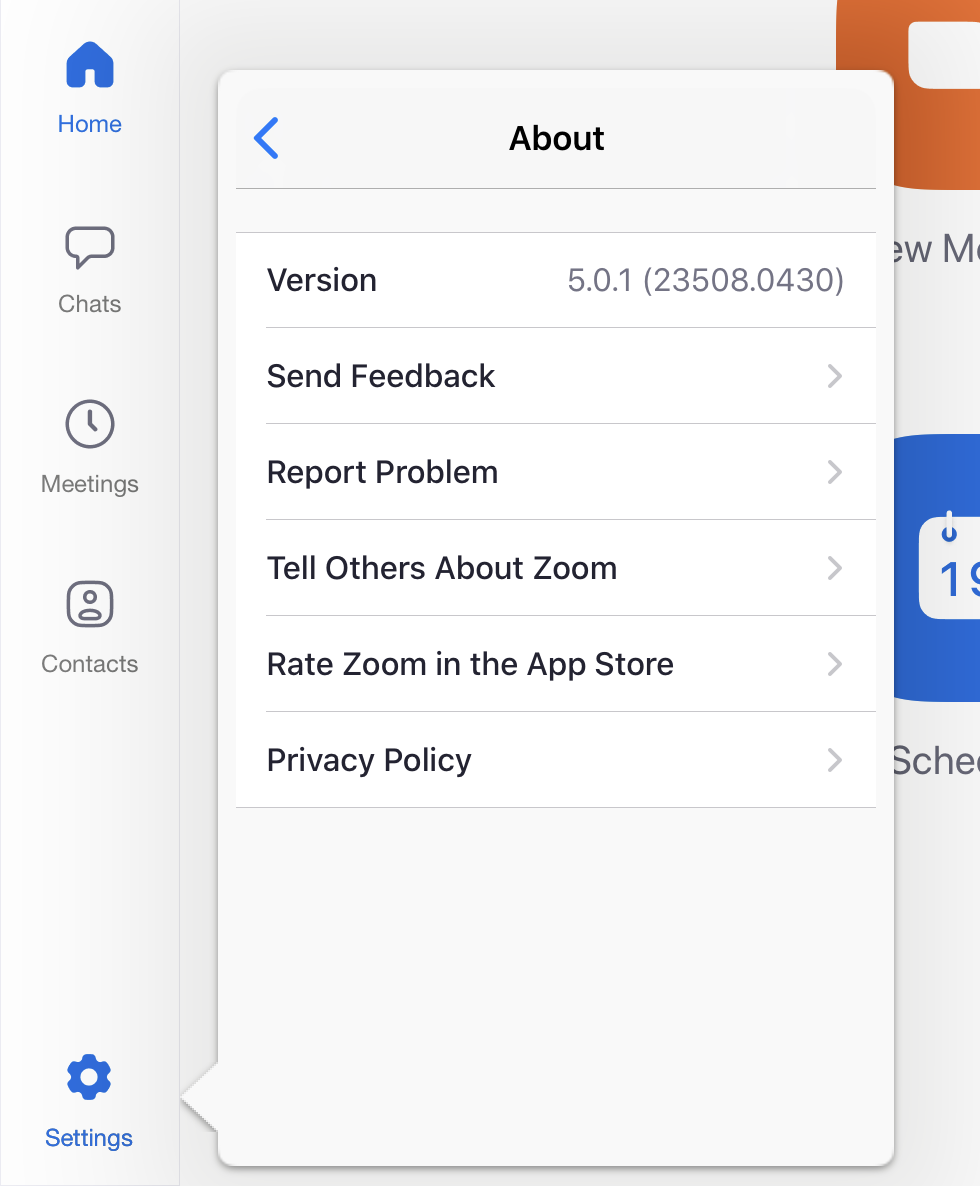
If you ever wish to check the version of Zoom on your iPad, just tap the
ZOOM Cloud Meetings app to open it, tap
Settings (lower-left corner), tap
About, and the version is shown at the top. As of this writing, the most current version of Zoom is
5.0.1.